
When a characteristic, area or facility that could cause danger or risk is identified on the property this should be added as a hazard and updated on the property map. Hazards can only be added from within an individual property, learn how to navigate to a property here.
1. Select the Hazards Workflow
2. Click ‘Add hazard’
Choosing the right type of feature
After clicking ‘Add hazard’ you will be presented with a list of available feature types. These are split into three different geometry types.
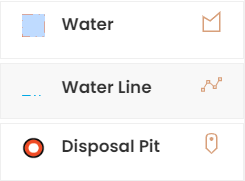
You should select the correct type and geometry for the hazard.
Use point when there’s just a single location for the hazard such as a disposal pit or chemical shed

Use line for hazards such as drains or overhead powerlines

Use area for hazards such as no go areas or gullies

You can filter the list of available feature types by typing in the search box or by clicking the filter button
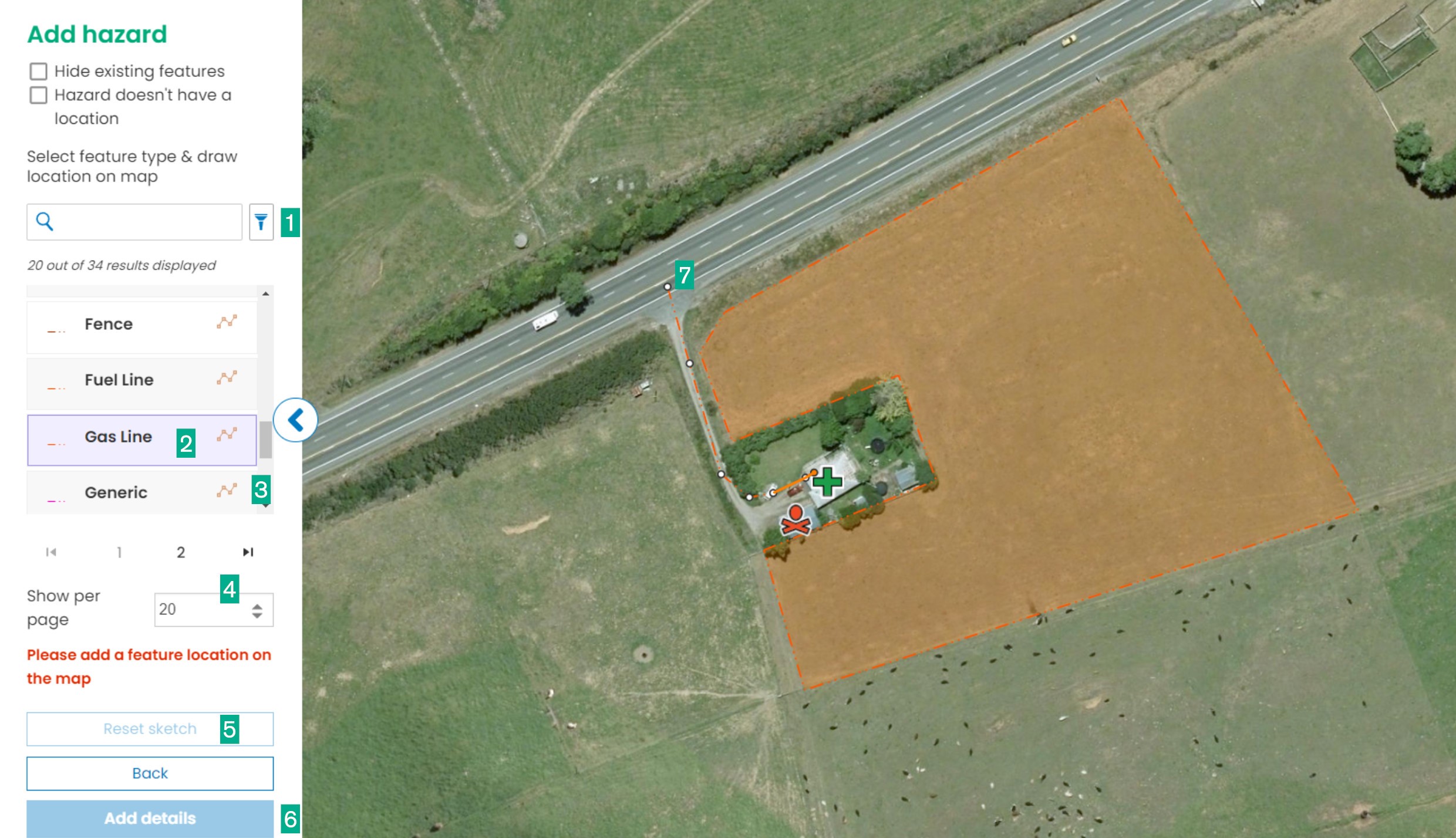
Add a Point hazard
-
Click the feature type in the menu to highlight it
-
Click on the map to add the hazard at that location
-
Use Reset sketch if you need to change the location
-
Select Add details
-
Enter the hazard details
-
Click Save hazard or Back to cancel
Add a Line hazard
-
Click the feature type in the menu to highlight it
-
Draw the line on the map by clicking on the start location and then double clicking to end the line
-
Use Reset sketch if you need to redraw the line
-
Select Add details
-
Enter the hazard details
-
Click Save hazard or Back to cancel
Add an Area hazard
-
Click the feature type in the menu to highlight it
-
Draw the area on the map by clicking on the start location and then around the corners of the shape completing the shape by drawing the last point in the same place as they first point
-
Use Reset sketch if you need to redraw the area
-
Select Add details
-
Enter the hazard details
-
Click Save hazard or Back to cancel
If you cannot see the Add hazard button, you do not have permissions to add hazards and should talk to your administrator.