
Create/Print PDF
-
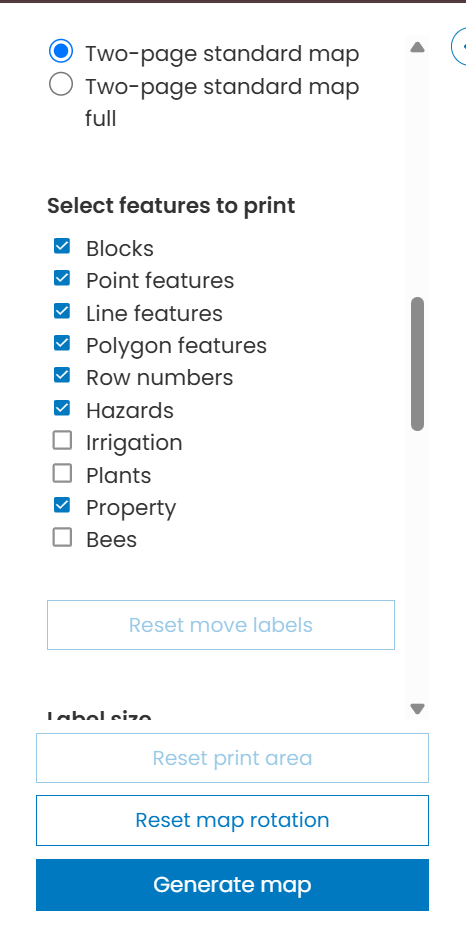
Select the Printing workflow from the sidebar. You will see a range of selection options under ‘Print map’, which we refer to as ‘Print Settings'.
-
Select your desired Print Settings to configure how your PDF map will look:
-
Preview approximate print area: This will show you the approximate area of your finished map. Use the zoom and rotation controls on the print settings panel to adjust this.
-
Print as Draft: Selecting ‘YES’ will apply a ‘Draft’ overlay across the finished PDF when downloaded.
-
Basemap: Select the underlying map to apply, for example ‘World Imagery’. You may also select ‘None’ if you prefer to have a blank background.
-
Template: This is the type of PDF you wish to print, for example 1 or 2 pages. These are configured by your administrator. Please contact us if you need to make changes to these.
-
Features: Select which features to add to the PDF.
-
Legend: Choose whether to add a legend to the map.
-
Entranceway Map: Choose whether to apply an extranceway minimap to the PDF. If this option is not visible to you, please contact us to configure it.
-
Buffer around Entranceway: This is only visible if you have opted to add an entranceway minimap to the PDF. It will apply the specified buffer around the property boundary.
-
Icon Size: Change the size of the icons on the map.
-
Label Size: Adjust the size of the labels on the map.
-
Add Note: Add a text area to the PDF. For example, you may choose to add emergency contact information, or information on safety protocol on your property.
-
-
Select Generate Map to create/print the PDF
-
Once the file is created, click on the download link
Landkind will remember the Print Settings you have chosen for the next time you print a PDF for this property.
Map not looking right? Troubleshoot issues with Printing
If you’re having problems with your PDF map, read on to learn how to troubleshoot some of the most common issues:
Table of crops not fitting on page?
Under the ‘Template’ Print Setting (see above), select the relevant two page template which will print the crop table on a second page. Contact us if you do not have a two page template.
Icons Too Big or Too Small?
Use the ‘Icon size’ toggle in the print settings to choose the best fit of the icons to the property size
Crop/Block Description Labels Overlapping?
-
On the map itself click on the crop/block description label → a blue box will appear
-
Drag the blue box to a location that is not overlapping
-
Repeat for any other labels that need to be moved
This feature is only available for crop/block description labels (not property feature or hazard labels). Crop/block description labels will need to be moved each time a PDF is created as these Settings are not retained in Landkind.
Property Not Fitting Map Area?
Use the ‘Zoom’ and ‘Map Rotation’ print settings to adjust the buffer around the property for printing. To see whether the property fits in the print area, click the ‘Preview approximate print area’ Print Setting and you will see the printed area display in a shaded black box.
If that does not work, you can edit the property boundary area to reduce or increase its size.
Map Orientation Incorrect?
Rotate the property by right clicking on the map and turning to the desired orientation. You can ‘Reset map position’ or ‘Reset map rotation’ under Print Settings at any time before you Generate map for printing to PDF.
Entranceway Number Incorrect?
The number on the entranceway map is updated separately from the property address number. View instructions to update the entranceway number and view instructions to update the property address.
Property Name or Address Incorrect?
Use the Property Editor Workflow to edit the property name or address.