
Operations and Events/Tasks are the jobs to be done and the major events that occur on the property. These can be created as points, lines or polygon features. Operations and Events can be added as individual features, or created in bulk through the Operations and Events Summary workflow.
Creating Tasks
-
Select the Operations and Events Workflow
-
Click ‘Add New’
-
From the radio buttons, select either ‘Draw the shape of the event’ or ‘Event applies to whole block’
-
For ‘Draw the shape of the event’, select the type of feature from the list below, and draw the feature on the map.
-
For ‘Event applies to whole block’, select the block(s) that the event/operation applies to.
-
Click ‘Add details’ to save the features geometry
-
Populate the features details through the details pane
-
Click ‘Save event' to save the feature
Editing Tasks
If you wish to edit a task, find the task in the list or calendar view, and click on it.
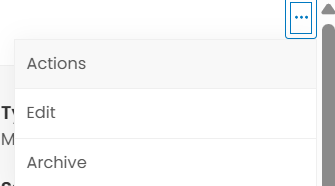
Then, click the 3 dots in the top right corner of the panel, and click ‘Edit’. The page will now change to edit mode, and you can make edits and save the task.
Completing a task
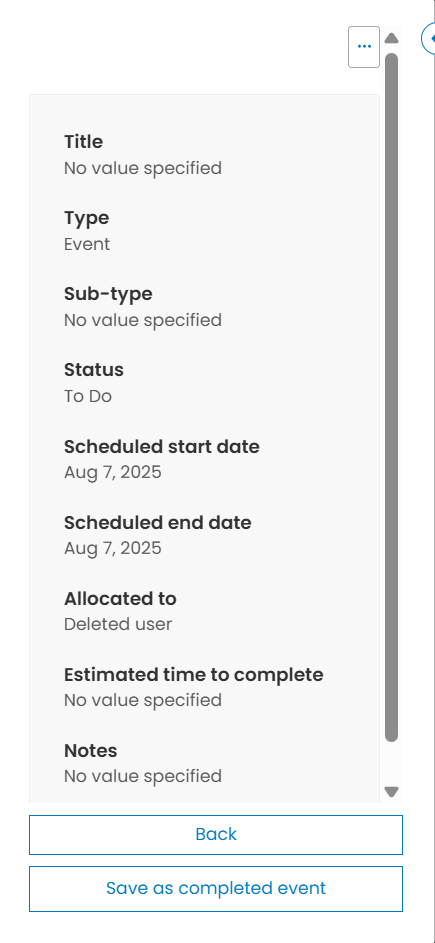
To complete a task, click on the task from the list or calendar view, and then click ‘Save as completed event’ at the bottom of the panel.
Archiving tasks
If you wish to archive a task, find the task in the list or calendar view, and click on it.
Then, click the 3 dots in the top right corner of the panel, and click ‘Edit’. The page will now change to edit mode, and you can make edits and save the task.