
When a new crop is planted, the property map needs to be updated. Blocks can only be added from within an individual property, learn how to navigate to a property here.
Add a crop/block
-
Select the Crops/Blocks workflow from the sidebar
-
Select Add Crop (button at bottom of blocks list)
-
You can create blocks in 2 ways:
-
Drawing the area onto the map
-
Selecting productive areas. To do this, you must have added property features marked as ‘Productive Area'. If there are no productive areas available without a block already on the same area, then this option will be disabled.
-
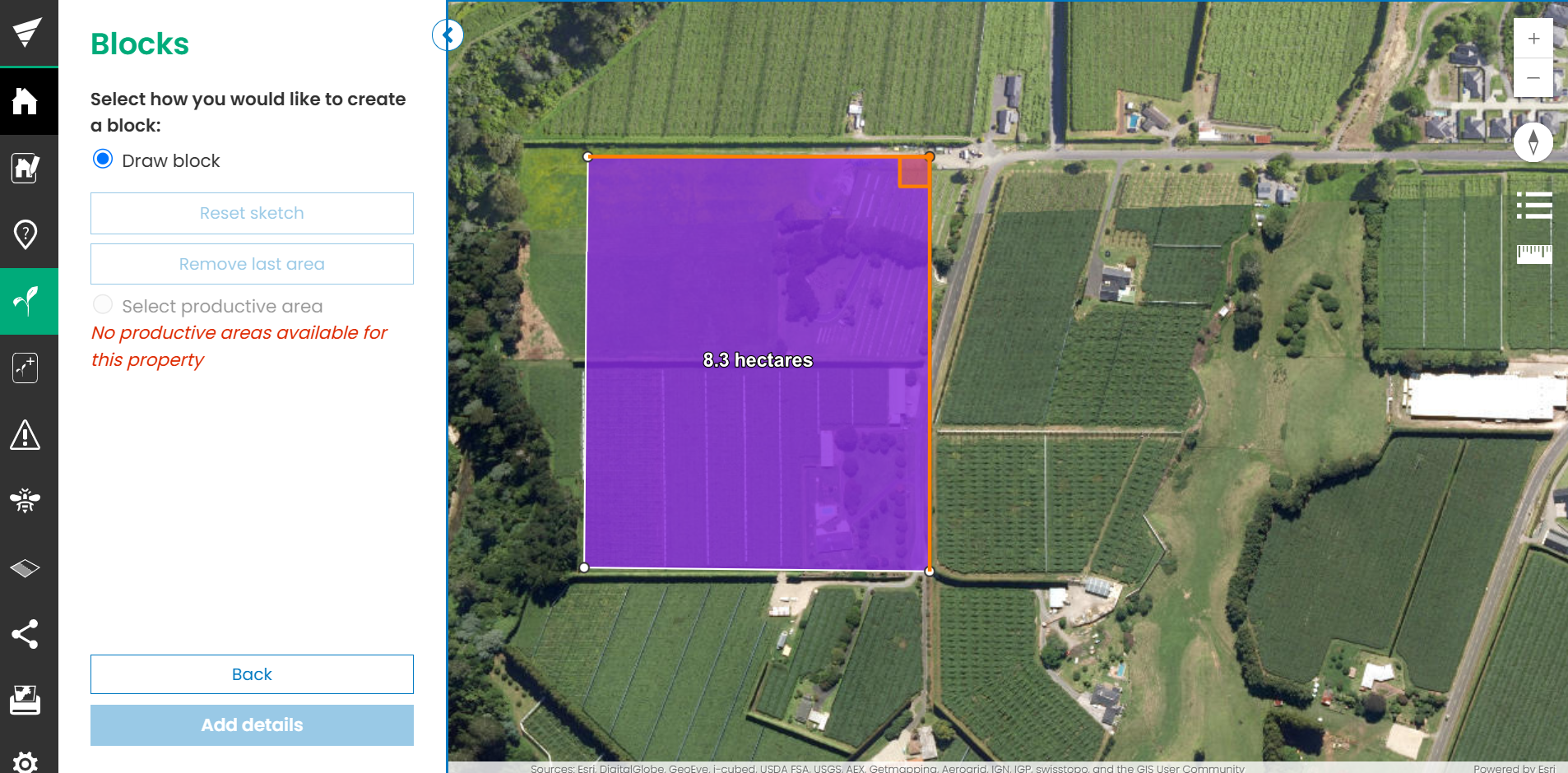
Drawing a block
-
Draw a box around the block you want to draw and click on the original point to end drawing. The new area of the block will be displayed.
-
To adjust the drawn area, click on the area that was drawn. You can move the vertices (points) to adjust the block. The new area will be displayed with each adjustment.
-
Select Add details
-
Enter the block details
-
Click Save crop to adopt the changes or Back to cancel
If you cannot see the Add Crop button, you do not have permissions to add a block and should talk to your administrator.