
Creating Tasks
-
Select the Operations and Events Workflow
-
Click ‘Add New’
-
From the radio buttons, select either ‘Draw the shape of the event’ or ‘Event applies to whole block’
-
For ‘Draw the shape of the event’, select the type of feature from the list below, and draw the feature on the map.
-
For ‘Event applies to whole block’, select the block(s) that the event/operation applies to.
-
Click ‘Add details’ to save the features geometry
-
Populate the features details through the details pane
-
Click ‘Save event' to save the feature
Editing Tasks
If you wish to edit a task, find the task in the list or calendar view, and click on it.
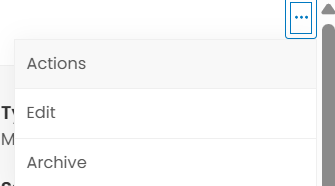
Then, click the 3 dots in the top right corner of the panel, and click ‘Edit’. The page will now change to edit mode, and you can make edits and save the task.
Completing a task
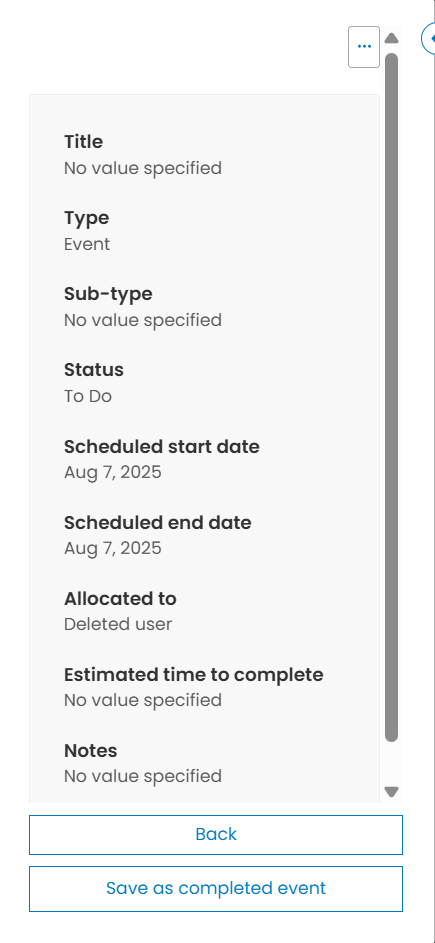
To complete a task, click on the task from the list or calendar view, and then click ‘Save as completed event’ at the bottom of the panel.
Archiving tasks
If you wish to archive a task, find the task in the list or calendar view, and click on it.
Then, click the 3 dots in the top right corner of the panel, and click ‘Edit’. The page will now change to edit mode, and you can make edits and save the task.