
You may wish to create multiple tasks at once for multiple properties.
To do this, click ‘Bulk create tasks’ on the list or calendar view, and you will be taken to the bulk create tool.
If you cannot see the ‘Bulk create tasks’ button, you do not have permissions to bulk create. To get access to this feature, contact your organisation administrator or get in touch with us.
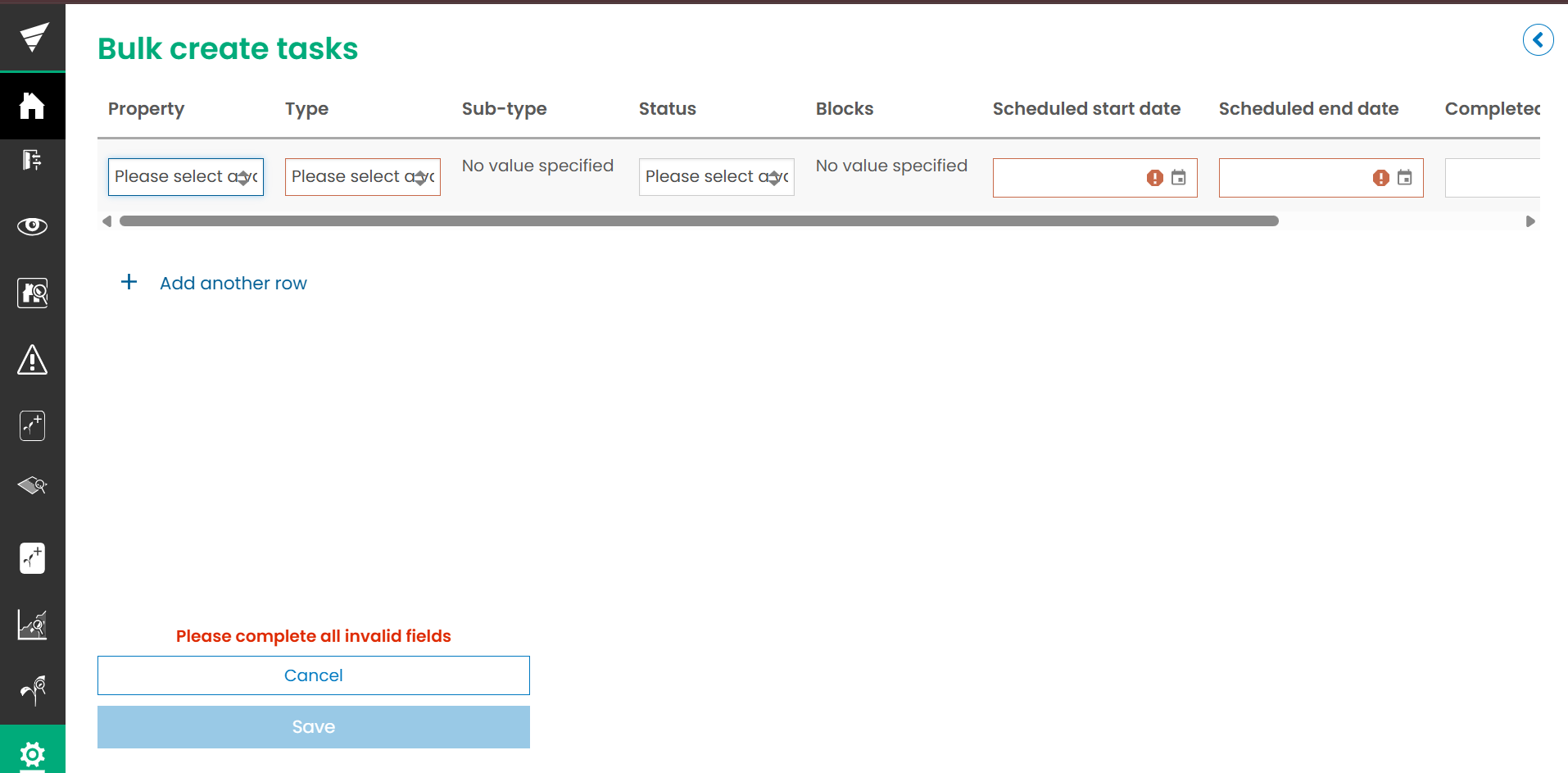
This view will show you a table to complete. You will have the option to select a property for each row, from the properties in the currently selected property group.
When you select a property from the dropdown, the available blocks and users to allocate the task to will update.
You can select multiple blocks by clicking the ‘add another item’ button in the blocks column.
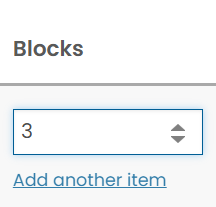
If you select ‘All’ from the blocks dropdown, the ‘Add another item’ button will not be available.
Once you are happy with your tasks, you can click ‘Save’, and these will be created and will appear in the list and calendar views, as well as in the individual property Tasks/Operations and Events workflows.